
A journey beyond the familiar
A party follows golden moths towards a red door among floating islands and reflected towers. Choose the dream, vision or nightmare your session needs.
Campaign & story
Connected dream scenes.
Clues and lucid choices.
A path back to waking.
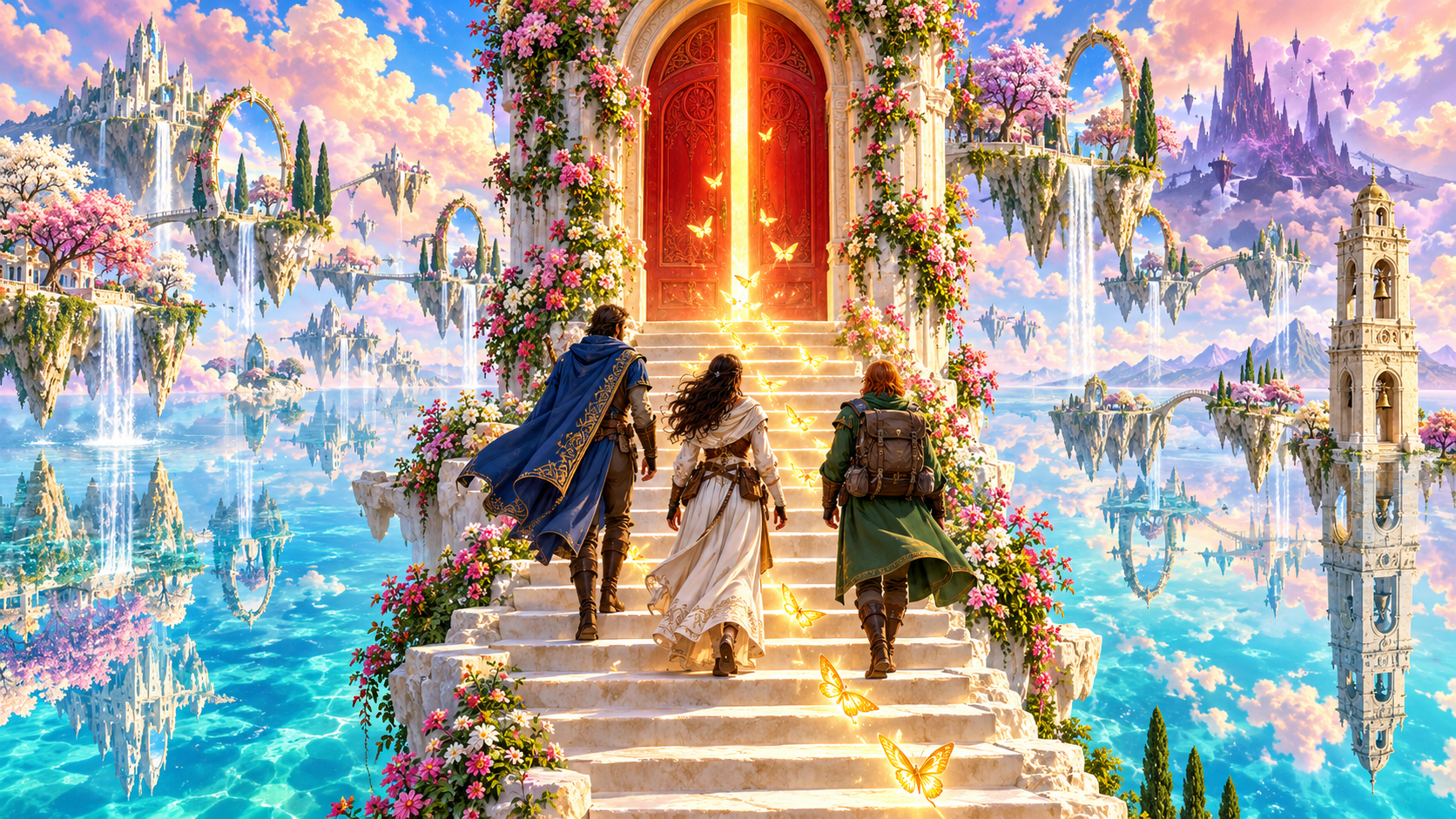
Step through the dream door
Prepare a written journey with observations, choices and a waking aftermath.
A party follows golden moths towards a red door among floating islands and reflected towers. Choose the dream, vision or nightmare your session needs.
Bring connected scenes, recurring motifs, dream laws and clues together. Review the dossier and adapt its narration to your characters and table.

Dream laws and lucid choices
A masked guide leads characters beside an impossible river, with golden moths between a bright castle and a dark nightmare tower.
Keep dream laws, recurring motifs and lucid choices beside each scene. Give the table observations to explore and a route through rising pressure.
What you can prepare
Keep the dream experience and its waking consequences in one dossier.
Choose a dream, vision or nightmare, its tone and purpose, and the affected characters. Set clarity and threat, with an optional title and seed.
Prepare three to six scenes with transitions and narration. Review the sequence and adapt the written notes to the pace of your session.
Keep dream physics, identity, memory and time beside the scenes. Use stable laws to give strange places a pattern the table can explore.
Follow three recurring motifs and their meanings through the dossier. Use repeated images to connect observations across the dream journey.
Place observed clues, a useful meaning and a believable misreading together. Review the prepared scenes alongside the clue you want to convey.
Prepare opportunities for characters to recognise and act within the dream. Keep those choices beside the scene notes and emotional pressure.
Follow rising pressure with safe failure notes and an intruder motive. Use the written material to guide the experience at your table.
Review three awakening paths, waking consequences and lingering residue. Connect the end of the dream to the next waking scene.
Edit dossier sections or precise JSON. Lock matching sections during selective scene, symbol, clue or awakening rebuilding; whole generation replaces all sections.
Save in your signed-in library, review prior versions and choose a Dungeon Master or player view. Copy or download JSON, or print the current view.
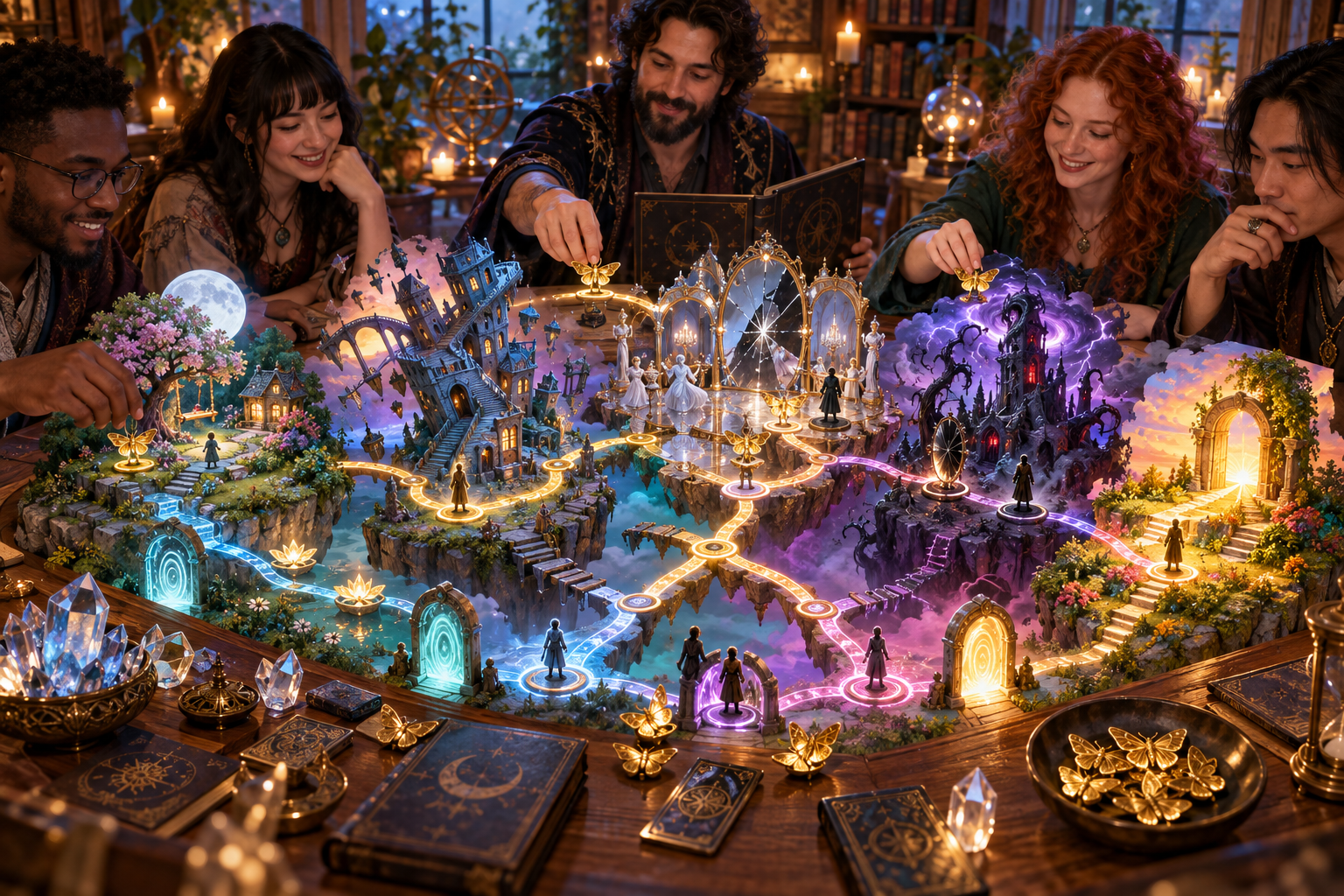
From premise to scene paths
A tabletop group reviews linked dream scenes, reflections, a nightmare tower and awakening portals. Choose the experience, purpose, characters, clarity and threat.
Create the dossier, then review scenes, motifs, clues and awakening paths. Edit the notes to fit your session and check linked details before sharing.
Quick setup. Deeper preparation.
Use recorded settings and review the written result against the meaning you intend.
Choose dream, vision or nightmare, tone, purpose and affected characters. Set clarity and threat, with an optional title and seed.
Record familiar characters, a true clue, a misleading interpretation and an intruder motive. Adapt the prepared scenes to the clue you want to convey.
Record physics, identity shifts, emotional pressure, memory, time, failure, residue and intended style. Keep the context beside the dossier as you review it.
Edit sections or precise JSON. Protect matching selective rebuilds with locks, and review continuity afterward. Whole generation replaces all sections.

Awakening paths and waking residue
Characters gather beside a waking campsite and pool while a golden moth, journal and dream doorway linger overhead.
Review three awakening paths, the waking aftermath and residue. Choose the ending that fits your session and carry its useful details into the next scene.
Saved dreams and table references
Review the chosen version and audience view before bringing it to the table.
Save, reopen, search, rename, duplicate or delete dossiers. Add tags and owner notes to keep each dream connected to your campaign.
Keep up to ten prior dossier versions. Undo or redo up to twenty workspace changes while editing. Reopening restores recorded locks, tags and notes.
Player view omits private clue meanings and intruder motive, and retains scenes, laws, observations, lucid choices and awakening routes. Check spoilers before sharing.
Copy or download the chosen Dungeon Master or player JSON view, or print the current view. Review continuity after edits, renaming, duplication or selective rebuilding.
Your desktop and related products
Open your products through your account and bring the chosen dossier to the table.

Open your VISINVOKE products through one signed-in Windows desktop workspace.
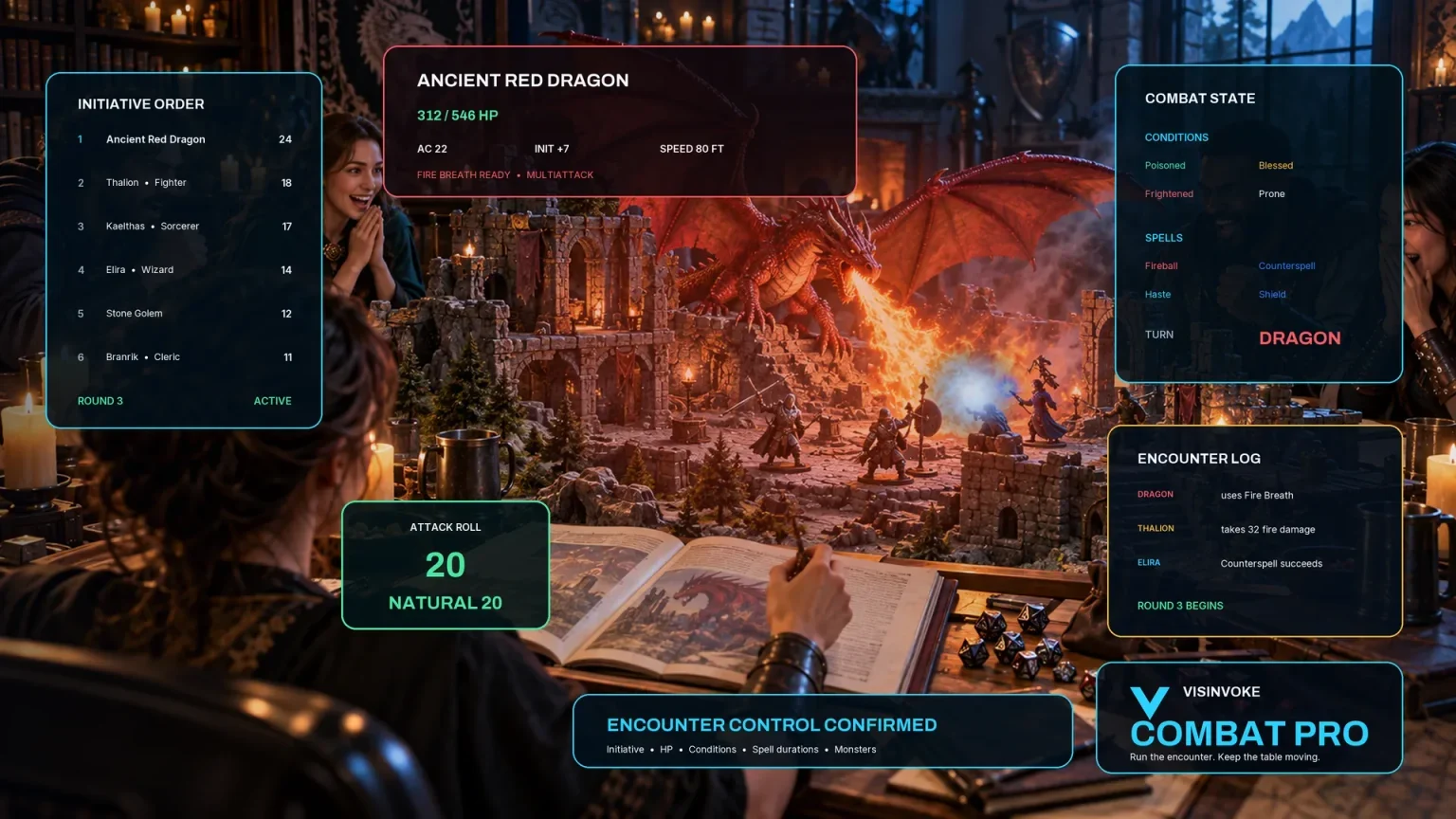
Use the dedicated encounter workspace for combat, and keep your prepared dream dossier with your campaign references.
Artwork illustrates fictional dream journeys and related products, not application screens.
Questions and answers
Preparation, section locks, saved versions and audience views at a glance.
A written dream, vision or nightmare dossier for a tabletop session: premise and purpose, dream laws, three to six connected scenes, three motifs, a clue ledger, lucid choices, rising pressure, awakening paths and waking aftermath.
Use Quick setup for type, tone, purpose, affected characters, clarity and threat, plus optional title and seed. Deep preparation records familiar characters, clues and misinterpretations, an intruder motive, physics, identity, emotion, memory, time, failure and residue. Review and adapt the resulting scenes to your intended meaning.
Edit individual sections or precise JSON and undo or redo up to twenty workspace changes. Matching section locks protect selective scene, symbol, clue or awakening rebuilding. Whole generation replaces all sections. Review linked details after edits and rebuilding.
Save and reopen dossiers, search, rename, duplicate or delete them, and add tags and owner notes. Keep up to ten prior dossier versions. Opening a saved dossier restores its recorded locks, tags and notes; input controls remain at their current settings.
Choose the Dungeon Master or player view and copy or download its JSON, or print the current view. The player view omits private clue meanings and the intruder motive while retaining scenes, laws, observed clues, lucid choices and awakening routes. Review spoilers and consistency before sharing, especially after edits or rebuilding.
Open the Generators collection in Desktop Control Centre on Windows through your VISINVOKE account. Review individual subscription access and current pricing in your account. A free account is separate from paid generator access.
Continue in VISINVOKE
Create a free VISINVOKE account or sign in to your existing account. Get Desktop Control Centre through your account installer page.
Open the Generators collection on Windows. Review current subscription and access details in your account.